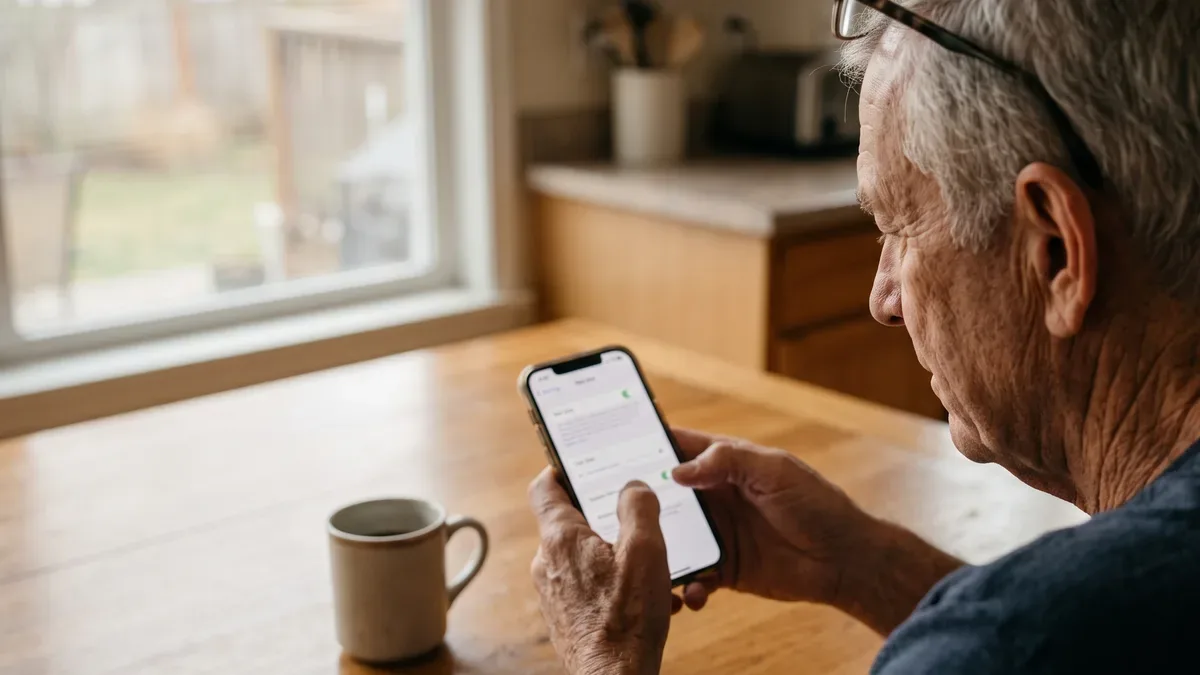
If the words on your phone feel too small, you are not alone, and the fix takes about a minute. This guide shows how to make text bigger on iPhone first, then on Android, with one action per step. Take your time. Nothing you do here can break your phone, and every change can be undone the same way you made it.
This page is part of our larger guide to phones for seniors, which covers choosing, setting up and using an iPhone or an Android phone.
How to make text bigger on iPhone: the main setting
This is the setting most people need when they ask how to make text bigger on iPhone. Menu names change a little with updates; if you do not see the exact words below, type "text size" into the search bar at the top of Settings. It changes the size of the words in Settings, Messages, Mail, Notes, Contacts and many apps from the App Store. Apps that do not support this setting keep their own size.
- Open Settings. It's the gray icon with gears.
- Tap Display and Brightness. On the screen it reads "Display & Brightness".
- Tap Text Size.
- Drag the slider to the right. You will see the sample text grow as you move it.
- Tap the back arrow at the top left when you are happy with it.
Open Messages or Mail to see the new iPhone font size. Still too small? Go back and move the slider one more step.
Go even larger with Larger Accessibility Sizes
The standard slider stops at a certain point. If you need more, the iPhone has a second, bigger range.
- Open Settings.
- Tap Accessibility.
- Tap Display and Text Size.
- Tap Larger Text.
- Turn on Larger Accessibility Sizes. The switch turns green.
- Drag the slider at the bottom to the right.
At the largest sizes, some apps cut off words. That is normal. Step the slider back one notch until your everyday apps look right.
Make the letters darker with Bold Text
Bigger is only half of it. Thin gray letters on a white screen can be hard to read at any size. Bold Text makes every letter thicker.
- Open Settings.
- Tap Display and Brightness.
- Turn on Bold Text.
Bold Text plus one or two steps up on the slider often does more than a very large size alone.
Make everything bigger on iPhone with Display Zoom
Text Size changes words. Display Zoom makes the whole screen larger: icons, buttons, the keyboard and the words together. It's a good choice if you often tap the wrong key or the wrong icon.
- Open Settings.
- Tap Display and Brightness.
- Tap Display Zoom.
- Choose Larger Text. On some older models the option is called Zoomed.
- Tap Done, then confirm. The screen goes dark for a second and comes back larger.
You will see fewer icons on each Home Screen page. Your apps are all still there; swipe left to find the ones that moved.
Bigger text in Safari and on websites
Some websites ignore your text setting. For those, Safari has its own size control.
- Open a web page in Safari.
- Tap the page settings button at the left of the address bar. Depending on your iOS version, it looks like two letters "aA" or a small menu icon.
- Tap the larger A to make the page bigger. Each tap adds a step.
Safari remembers your choice for that website. On many articles, Reader in the same menu shows the story in large, clean text without ads.
Zoom and Magnifier: for small print everywhere else
Two more iPhone tools help with text the settings cannot reach, like a photo of a menu or a screenshot of a bill.
Zoom enlarges any part of the screen. Turn it on in Settings, then Accessibility, then Zoom. After that, double-tap the screen with three fingers to zoom in, and double-tap with three fingers again to zoom out. Drag three fingers to move around.
Magnifier turns your camera into a magnifying glass for paper, like a restaurant menu or a receipt. Open the Magnifier app, or search for "Magnifier" from the Home Screen. Point the phone at the page and use the slider to zoom.
If you get stuck: your screen suddenly looks huge and you can't tap anything. That is Zoom, and it's the most common surprise. Hold three fingers together and double-tap the screen. It will go back to normal. Then turn Zoom off in Settings, Accessibility, Zoom if you don't use it.
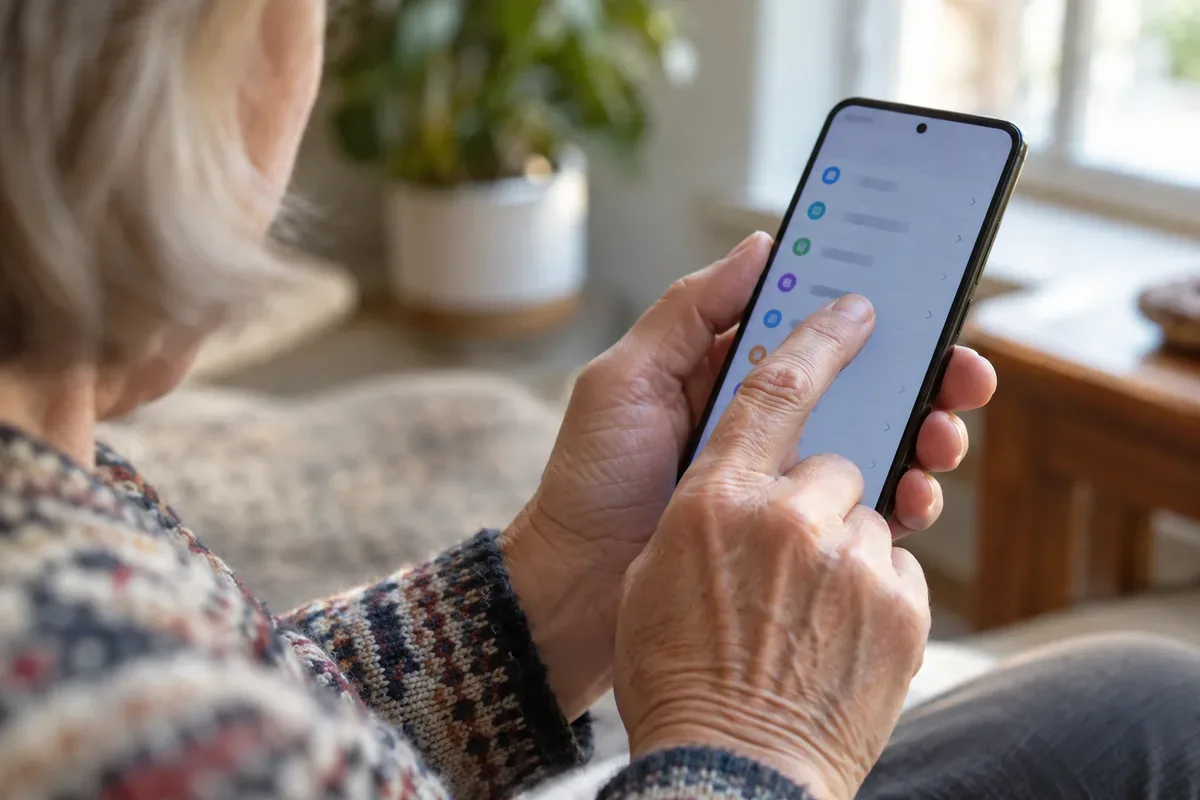
How to make font bigger on Android
Android phones are made by many companies, so the menus differ a bit. The steps below work on Google Pixel phones and on most others. Samsung Galaxy steps follow.
Google Pixel and most Android phones
- Open Settings. It's the gear icon.
- Tap Display. On some phones it's called Display and touch.
- Tap Display size and text. On older versions, look for Font size.
- Move the Font size slider to the right. The preview shows the new size.
- Turn on Bold text in the same screen if you want darker letters.
On the same screen you will see Display size. That one works like Display Zoom on the iPhone: it makes icons and buttons bigger, not only words.
Samsung Galaxy phones
- Open Settings.
- Tap Display.
- Tap Font size and style.
- Drag the Font size slider to the right.
- Turn on Bold font if you want thicker letters.
Back on the Display screen, Screen zoom makes everything larger.
How to increase text size on Android in Chrome and with magnification
Chrome, the main Android web browser, has its own setting for websites.
- Open Chrome.
- Tap the three dots at the top right.
- Tap Settings, then Accessibility.
- Move the Text scaling slider until the sample reads comfortably.
For everything else, Android has Magnification. Open Settings, tap Accessibility, then Magnification, and turn on the shortcut. Depending on your phone, you then triple-tap the screen or tap a small accessibility button to zoom in. Use the same shortcut to zoom out. If the screen ever gets stuck large, that same triple-tap or button is the way back.
Other settings that help with reading
Once the words are bigger, a few other settings can help your eyes. These work on both phones, with slightly different names.
- Brightness. Swipe down from the top right corner on an iPhone (on an iPhone with a Home button, swipe up from the bottom), or down from the top on Android, and drag the sun slider up.
- Dark mode. White text on a black background. Try it in Settings, then Display and Brightness on an iPhone, or Settings, then Display on Android, and keep it only if it helps.
- Auto-lock timing. If the screen goes dark while you are still reading, give it longer in Settings, then Display and Brightness, then Auto-Lock on an iPhone, or Screen timeout on Android.
- Reading aloud. Both phones can read text to you. On an iPhone, look for Spoken Content in Accessibility. On Android, look for Select to Speak.
Why your text changed back, and what to do
A new phone does not always carry over your display choices, and a large software update can reset one now and then. If the words shrink again, repeat the steps for how to make text bigger on iPhone or Android above. It takes a minute.
Some apps, such as email apps, news apps and e-readers, have their own text size. If one app stays small while the others grow, open that app's settings and look for "Text size" or "Font".
If someone calls offering to fix your screen for you
Scam alert: no real company calls you out of the blue to fix your text size, your screen or a "problem" on your phone. Apple and Google do not make those calls. If someone asks you to install an app so they can "see your screen," hang up. When in doubt, hang up and call back using a number you already trust.
Fake tech support is one of the most common tricks aimed at older adults. The senior scams guide shows what these calls sound like and how to stop them. If you would like a bigger screen altogether, our guide to tablets for seniors compares the main kinds, and iPads and Android tablets use the same text settings as the phones. Shopping for a new phone line too? See how the best cell phone plans for seniors compare.
Frequently Asked Questions
How do I enlarge my text size?
On an iPhone, open Settings, tap Display and Brightness, then tap Text Size and drag the slider to the right. On most Android phones, open Settings, tap Display, then look for Font size or Display size and text and move that slider. The change applies to Settings, Messages, Mail and many other apps right away, and you can undo it the same way.
How do I make everything bigger on my iPhone?
To make icons, buttons and text larger all at once, open Settings, tap Display and Brightness, then Display Zoom, and choose Larger Text. Your iPhone restarts the screen in the new size. For a bigger lift only on words, use the Larger Text setting under Accessibility instead. Many people use both together.
Why is my iPhone text so small?
Most iPhones leave the factory with the standard text size, which many people find small. A software update or a new phone can also reset your choices. Some websites and older apps ignore your text setting entirely. Open Settings, then Display and Brightness, then Text Size, and set it where reading feels comfortable.
Why is my iPhone font huge and I can't open it?
The screen is most likely zoomed in by the Zoom feature, not by a text setting. Double-tap the screen with three fingers held together to zoom back out. Then, if you want, open Settings, tap Accessibility, tap Zoom and turn it off so it does not happen again by accident.
One thing to try this week
Pick one app you read every day, like Messages or Mail. Open it, then set the text size so you can read it comfortably without your glasses, or with them if you always wear them. Use the phone that way for three days before you decide it's right. If it feels too big, move the slider back one step. For more ways to set up your phone so it works for you, go back to our complete guide to phones for seniors.
Sources
- Apple Support, iPhone User Guide: support.apple.com/guide/iphone
- Google Android Accessibility Help: support.google.com/accessibility/android