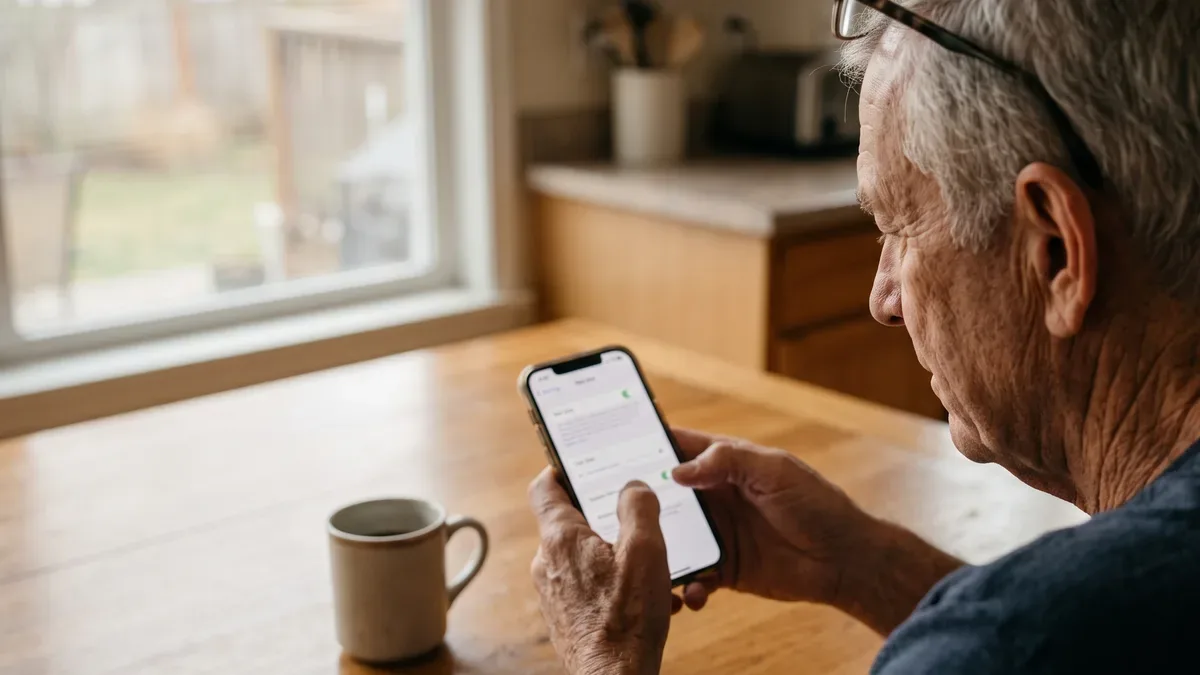
If you are looking at tablets for seniors, the choice is smaller than the store shelves make it look. Most tablets fall into four families: the iPad, Android tablets, tablets made only for older adults, and reading tablets. This guide compares them in plain words, so you can pick the one that fits your eyes, your hands and the people who will help you. Take your time.
This page is part of our complete guide to phones for seniors, which covers the same questions for the phone in your pocket.
Label: Researched. What you read here comes from public descriptions by the makers and from Apple and Google help pages. Features change, so check them before you buy. We did not test any tablet and list no prices, because they change often.
What a tablet does well, and where it falls short
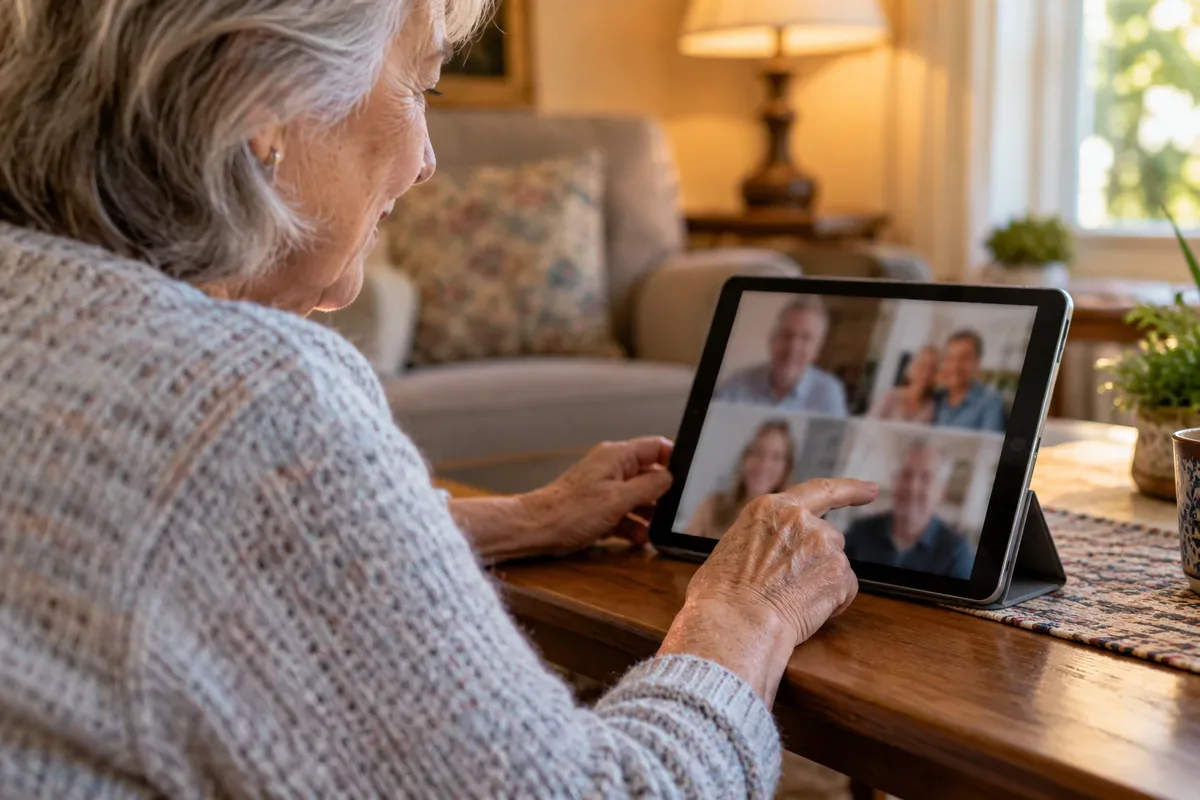
A tablet is a large touch screen with no keyboard attached. You hold it, prop it on a stand, or lay it flat on the table. Everything is bigger than on a phone: the words, the buttons, the faces on a video call. That makes tablets for seniors good for video calls with grandchildren, reading books and recipes with the text as large as you like, looking at family photos and browsing the web.
A tablet also has limits. It is too big for a pocket, many models go online only through Wi-Fi, and typing a long email on a touch screen is slow.
The four main types of tablets for seniors
Here is how the main options compare at a glance.
| Type | Good at | Watch out for | Suits you if |
|---|---|---|---|
| iPad | Same menus on every model, strong accessibility settings, in-store help | Higher prices, fewer sizes | Your family uses iPhones |
| Android tablet | Many sizes and prices, works with a Google Account | Menus differ by maker | You use an Android phone or want more choice |
| Simplified tablet for older adults | Very few buttons, family can help from a distance | Often a monthly plan, fewer apps | You want the calmest screen possible |
| Reading tablet | Books, video, lower prices | Limited app store, fewer features | You mostly read and watch |
The iPad
The iPad is made by Apple, so the menus look the same on every model. If you have an iPhone, Text Size, Bold Text and Zoom work the same way. The Apple Support iPad User Guide explains each one with pictures. FaceTime works with one tap between Apple devices, and Apple Stores offer in-person help.
The limits: new iPads sit at the higher end on price, and there are fewer sizes. Apple also sells refurbished iPads on its website.
Android tablets
Android tablets are made by several companies, Samsung being one of the best known. That means more sizes, more prices and more screens to choose from. They use a Google Account, so if you have an Android phone, your contacts and photos can follow you. The Google Android Accessibility Help pages explain the settings for larger text, bold text and magnification.
The limit is that each maker arranges the menus a little differently, so a helper who knows one brand may need a minute on another.
Simplified tablets made for older adults
Some tablets are built only for older adults; GrandPad is one name you may have seen among these senior tablets. They show a few large buttons for calls, photos and messages, and hide most of the menus. Family members can usually be invited to send photos and messages, and some models let them help set things up from a distance.
The trade-off is choice. You get fewer apps, and these tablets are often sold with a monthly service plan instead of as a one-time purchase. Before you sign up, ask what the total monthly cost is, what the plan includes and how you cancel. Some tablets sold to older adults are also marketed as health tools; that is a different kind of product, and this guide does not cover it.
Reading tablets
Amazon's Fire tablets and Barnes and Noble's Nook line started as ways to read books. Today Fire tablets also play video, make video calls and run apps, often at a lower price than an iPad. Fire tablets use Amazon's own app store rather than the Google Play Store, so a few apps your family uses may not be there. List the apps you want, such as your video call app, and check that each one is available.
Which is better for seniors, an iPad or another tablet?
Many people start here, and the most useful answer is a practical one: look at who will help you.
If your children or grandchildren use iPhones, an iPad lets them talk you through any setting by phone. If they use Android phones, an Android tablet makes the same sense. If nobody around you has a preference, go to a store and hold both. Pick the one whose screen you read more comfortably. A simplified tablet makes sense when even a cleaned-up screen feels like too much.
What to compare in tablets for seniors before you choose
Screen and text. Hold the tablet at the distance you would use at home, and make the text larger in the store's settings. You will see right away whether the words sit comfortably.
Weight and grip. Hold it with one hand for a minute. A larger screen is heavier; if your hands tire, a smaller model or a stand may suit you better.
Sound and camera. Ask to play a video and make a test video call. The front camera is the one that shows your face to family.
Wi-Fi only or cellular. Many tablets are Wi-Fi only. Some simplified tablets include their own cellular service, and some other models come in a cellular version that goes online anywhere, with its own data plan. If you are weighing that, our guide to the best cell phone plans for seniors explains how to compare plans without overpaying.
Updates. Ask how long the maker promises security updates for that model. A tablet that stops getting updates becomes less safe over time.
Storage. Photos and videos fill a tablet fastest. Ask about storage and whether it backs up to the cloud.
Stands, cases and a stylus: small extras that help
A few inexpensive accessories make any tablet kinder to the hands.
- A stand holds the tablet at eye level for video calls and reading, so your hands can rest. If you want to see what exists, you can look at tablet stands on Amazon.
- A case with a grip or handle makes the tablet less slippery and protects it when it slides off a lap.
- A stylus, a pen with a soft tip, helps if your fingertips do not always register on the screen.
None of these is required. Add an extra only when you notice a need.
Set up a new tablet in the first hour
Setup looks much the same on all tablets for seniors. Sit somewhere quiet, with your Wi-Fi password and email address nearby.
- Connect to your home Wi-Fi.
- Sign in with your Apple Account or Google Account. Write the email and password down and keep them at home.
- Choose a passcode you will remember.
- Open Settings and make the text bigger before anything else.
Our guide on how to make text bigger on iPhone and Android works for tablets too, because iPads and Android tablets use the same settings as the phones.
If you get stuck: last spring, a man at the library's tech-help hour showed me a tablet still in its box since his birthday, because the first screens looked like too many questions. We turned it on together and answered them one at a time, the text size first. If a step confuses you, skip it and come back later from Settings. That is normal.
Free and low-cost tablets: what is real
There is no federal program that hands a tablet to everyone over a certain age. A few real options exist:
- Your library or senior center. Some lend tablets or run free classes. Call and ask.
- Lifeline. This federal program lowers the monthly cost of phone or internet service for people with limited income or who take part in certain assistance programs. It does not buy the tablet, but it can help with the connection. The FCC Lifeline page explains who qualifies.
- Refurbished tablets from the maker or a known retailer, with a warranty.
Scam alert: be wary of anyone who calls, texts or knocks on your door offering a "free government tablet" in exchange for your Social Security number, your Medicare number or your bank details. Apply only through the official route the FCC describes. When in doubt, hang up and call back.
The FTC keeps a list of current tricks on its consumer advice site, and our guide to senior scams shows what these offers sound like.
Frequently Asked Questions
What is the easiest tablet for an older person to use?
The easiest tablet is the one that matches what you want to do and who will help you. Simplified tablets made for older adults have the fewest buttons and menus. An iPad or an Android tablet set up with larger text and only a few apps on the first screen can feel as calm, and it gives you more room to grow.
How can I get a free tablet for seniors?
There is no general free tablet for people over a certain age. Some public libraries and senior centers lend tablets or run free classes, so call and ask. The federal Lifeline program can lower the monthly cost of phone or internet service for people with limited income. Be wary of anyone who calls or knocks to offer a free government tablet.
Which tablet is best for seniors?
No single tablet is best for everyone. If your family uses iPhones, an iPad lets them help you quickly. If you want more sizes and prices, an Android tablet fits. If you want the fewest choices on the screen, a simplified tablet may suit you. If you mostly read books, a reading tablet can be enough.
One thing to try this week
Write down the three things you would do most on a tablet, such as video calls, reading or photos. Then ask the person who helps you most with technology which kind of tablet they use. Take both answers to a store and hold the tablets that match. For the phone side of the same choice, go back to our complete guide to phones for seniors.
Sources
- Apple Support, iPad User Guide: support.apple.com/guide/ipad
- Google Android Accessibility Help: support.google.com/accessibility/android
- FCC Lifeline program: fcc.gov/lifeline-consumers
- FTC Consumer Advice: consumer.ftc.gov