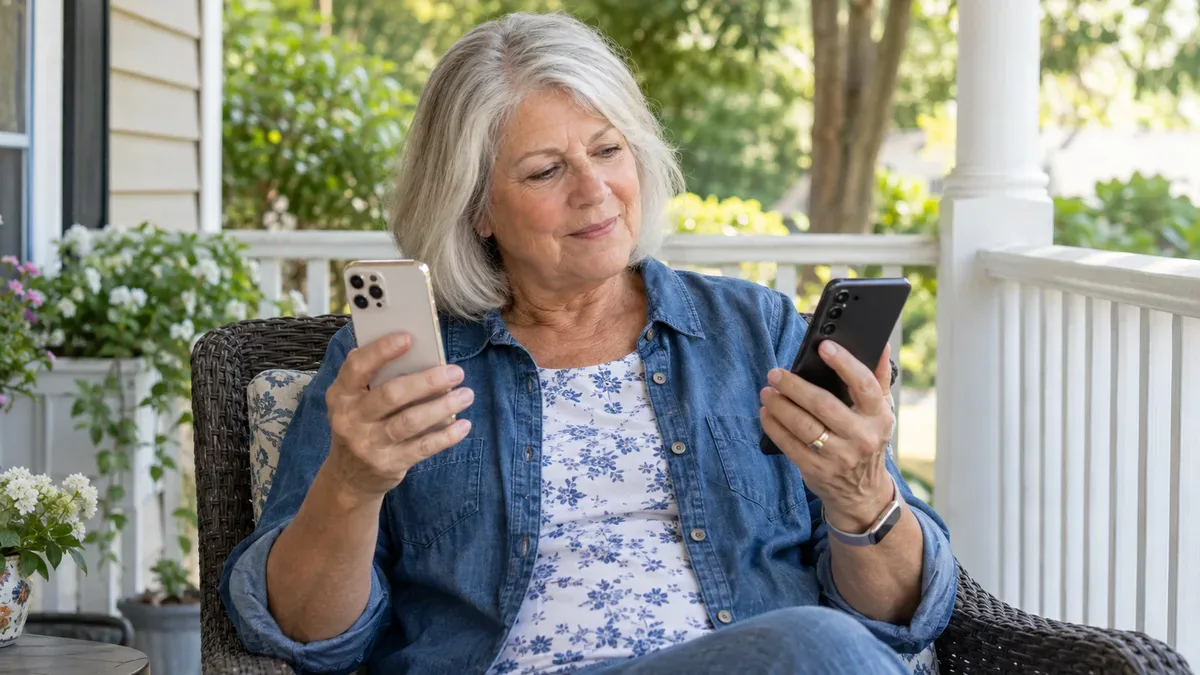
The best phones for seniors are not special phones. They are ordinary iPhones and Android phones, or a simple flip phone, set up to fit your eyes, your ears and the way you like to use them. This guide walks you through choosing one, setting it up, picking a plan and staying safe, one step at a time. Take your time. Nothing you do while setting up a phone will break it.
What to look for in phones for seniors
Most phone ads talk about speed and cameras. When you are choosing phones for seniors, a few plainer things matter more.
Screen size. A larger screen shows larger text without cutting off words. If you have smaller hands, hold a few models in the store. A phone that is too big to hold with one hand can be harder to use.
Sound. Hold the phone to your ear in the store and ask to make a test call. Check that the speaker is loud and clear. If you wear hearing aids, look for the hearing aid compatibility information on the box or in the carrier's listing, and ask to try the phone with your hearing aids in. The FCC has updated its hearing aid compatibility rules, and its Consumer Guides explain what the labels mean.
Buttons and opening the phone. Face recognition or a fingerprint sensor lets you open the phone without typing a code every time. Try both in the store if you can.
Camera for video calls. The front camera is the one that matters for seeing grandchildren. Every current smartphone has one; ask to try a video call in the store if you are unsure.
Battery. Look for a phone that lasts a full day with your use; owner reviews help more than the box.
Support. Ask yourself who will help you when something looks strange. A phone your family already knows is worth a lot.
iPhone for seniors or Android: which one fits you
It's the first question most people ask about phones for seniors. The plain answer: both are good, and the right one depends on you.
Why people choose an iPhone
An iPhone is made by one company, Apple, so the menus are the same on every model. Apple Stores offer in-person help, and the Apple Support site has a full user guide with pictures. If your children and grandchildren use iPhones, they can help you by phone because they know where every setting is. FaceTime video calls between iPhones work with one tap.
The main drawback is choice. There are fewer models and sizes, and prices for new iPhones sit at the higher end.
Why people choose Android
Android phones are made by many companies, including Google (Pixel) and Samsung (Galaxy). That means more sizes, more prices and more choice of screen. Many Samsung models offer a simplified Home Screen with larger icons, and the Google Android Help site explains each setting.
The drawback is that menus differ from one maker to the next. A helper who knows a Samsung phone may need a minute to find the same setting on a Pixel.
A good rule for choosing
If the people who will help you all use one kind of phone, pick that kind. It is the most practical tip in this guide. If no one around you has a preference, visit a store and hold both. Pick the one whose screen you read more comfortably.
Smartphone or a simple phone?
Not everyone wants a smartphone, and that is fine. The choice runs from basic flip phones to the latest smartphones.
A basic or flip phone makes calls and sends texts. It has physical buttons, a long battery life and very few menus. It is a good fit if you mainly call family and don't want apps.
A smartphone for seniors is an ordinary smartphone set up with larger text and fewer icons. It does everything a flip phone does, plus photos, video calls, maps, email and apps like your bank's or your grocery store's.
Some phones marketed to older adults come with a paid service plan attached. Before you buy one of these, ask what the monthly service costs, what it includes and whether you can cancel. You may get the same features from an ordinary phone and an ordinary plan.
If you are unsure, a middle path works well: a smartphone with the Home Screen cut down to the few apps you really use.
Where to buy: new, refurbished or through your carrier
Phones for seniors are sold in the same places as any other phone, in three common ways.
From your carrier. Stores for major carriers sell phones and often spread the cost over monthly payments. Ask how long the payments last and what happens if you want to switch carriers before they end. Some deals tie you to the carrier until the phone is paid off.
Unlocked, from the maker or a retailer. An unlocked phone works with most carriers. You pay for it up front or through the store's own payment plan, and you are free to change phone plans later.
Certified refurbished. Apple sells refurbished iPhones on its website, and some carriers and retailers sell refurbished Android phones. A certified refurbished phone is inspected and comes with a warranty. Ask how long the warranty lasts and whether the battery was replaced.
Whichever you choose, ask for the return period in writing and use the phone at home before it ends. If you cannot hear callers clearly or read the screen without strain, return it.
How to make text bigger on iPhone and Android
Small text is one of the most common reasons people give up on a new phone, and one of the quickest things to change. Both iPhones and Android phones let you make the words larger in a minute, and the change carries across many apps.
On an iPhone, the main control is in Settings, then Display and Brightness, then Text Size. You drag a slider to the right until the sample reads comfortably. In the same menu, Bold Text makes every letter thicker, and Display Zoom makes icons and buttons bigger too. For even more, Larger Accessibility Sizes in the Accessibility settings opens a bigger range.
On most Android phones, open Settings, then Display, and look for Font size or Display size and text. Samsung phones call it Font size and style. You will also find Display size, which enlarges everything on the screen.
If your screen suddenly looks huge and you can't tap anything, the Zoom feature is on. On an iPhone, double-tap with three fingers to go back to normal.
Our step-by-step guide on how to make text bigger on iPhone and Android covers every setting, with one action per step, plus Safari and Chrome, magnification, and what to do when a setting changes back after an update.
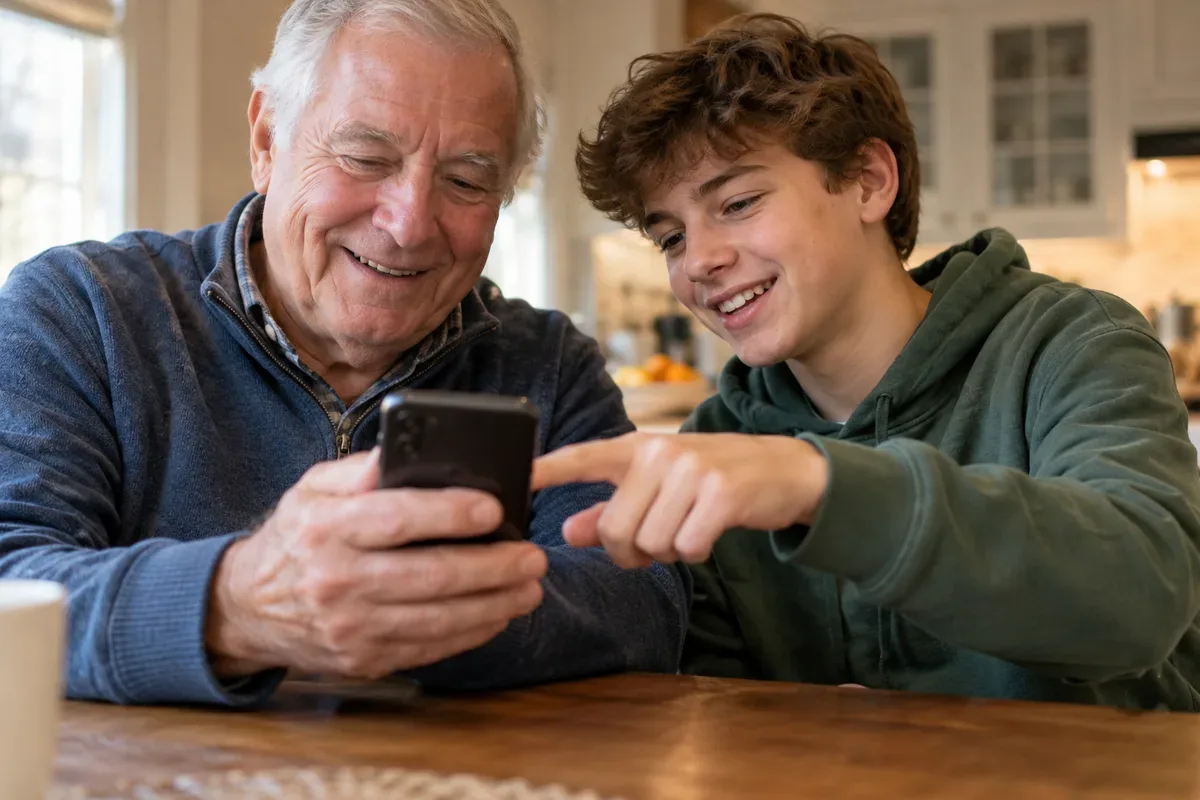
Best cell phone plans for seniors: how to compare
Choosing the phone is half the decision. The plan is the other half, and it's where most people overpay.
Start by looking at how much mobile data you really use. Your phone keeps a record: on an iPhone, in Settings, then Cellular; on Android, open Settings and search for "data usage". Many people who use Wi-Fi at home use far less than their plan includes.
Next, check coverage at your own address. The FCC National Broadband Map shows which carriers report mobile coverage where you live. Ask your neighbors too; they know which carrier works indoors on your street.
Then look at the kinds of plans. Some major carriers offer 55+ plans with rules on age, lines, autopay and location. Prepaid plans and smaller carriers that run on the big networks often suit light users. Pay-as-you-go service fits someone who rarely calls, and a two-line or family plan can cost less per line than a 55+ plan. None is best for everyone, so compare the total monthly cost with taxes and fees, not the advertised rate.
Our guide to the best cell phone plans for seniors compares each kind of plan, what it suits and where it falls short, and lists the questions to ask before you switch.
Tablets for seniors: when a bigger screen helps
Some people find that a phone is right for calls and texts, but a bigger screen is nicer for video calls, reading and family photos. That is where a tablet comes in. It uses the same accounts and many of the same settings as your phone, so it can feel familiar from the first day.
Tablets fall into four main families. The iPad has the same menus as the iPhone and in-store help at Apple Stores. Android tablets come in more sizes and prices and work with a Google Account. Simplified tablets made for older adults, such as GrandPad, show a few large buttons and hide most menus, but they are often sold with a monthly service plan. Lower-cost tablets such as Amazon's Fire, first known for reading, cost less but offer a narrower set of apps.
The same rule applies as with phones: if your helpers use iPhones, an iPad lets them talk you through any setting. Many tablets are Wi-Fi only, so they stay at home. Some simplified tablets include their own cellular service, and cellular versions of other tablets need their own data plan.
Our guide to tablets for seniors compares the four families side by side, lists what to check in the store, and explains which free tablet offers are real.
A free or low-cost phone: the Lifeline program
Many people search for a free phone for seniors. There is no federal program that gives a phone to everyone over a certain age. What does exist is Lifeline, a federal program that lowers the monthly cost of phone or internet service for people with limited income or who take part in certain assistance programs. Some companies that offer Lifeline service include a phone.
The FCC Lifeline page explains who qualifies and how to apply. Only one Lifeline benefit is allowed per household.
Scam alert: be wary of anyone who calls, texts or knocks on your door offering a "free government phone" in exchange for your Social Security number or bank details. Apply through the official route the FCC describes.
Set up your new phone in the first hour
A new phone asks a lot of questions when you first turn it on. The steps are much the same on every phone, iPhone or Android. Sit somewhere quiet, with your Wi-Fi password and your email address nearby. If a family member can sit with you, even better.
- Choose a passcode you will remember and that others won't guess. Avoid your birth year. Write it down and keep it somewhere safe at home, away from the phone.
- Sign in or create your account. An iPhone uses an Apple Account; an Android phone uses a Google Account. Write the email and password down with the passcode.
- Turn on backups. On an iPhone, look for iCloud Backup in Settings. On Android, look for Backup under Google in Settings. Backups keep your photos and contacts if the phone is lost.
- Make the text bigger before anything else, using the steps above.
- Put your favorite people on top. Add your closest contacts to Favorites in the Phone app.
- Tidy the Home Screen. Move the apps you use every day to the first page. You can move the rest to a second page or a folder. Nothing is deleted.
- Set up emergency contacts. Both iPhones and Android phones let you name people to contact in an emergency. On an iPhone, open the Health app and set up Medical ID. On Android, look for Safety and emergency in Settings.
- Turn on automatic updates. On an iPhone, it's under Settings, General, Software Update. On Android, look for Software update in Settings. Updates fix security holes.
If you get stuck on any step, skip it and come back later. The phone will still work.
Stay safe on your phone
Your phone is also the main way scammers try to reach you. The FTC keeps a clear list of the latest tricks on its consumer advice site. A few habits stop most of them.
Let unknown numbers go to voicemail. On an iPhone, look for Silence Unknown Callers in the Phone settings. On Android, open the Phone app, tap the three dots, then Settings, and look for the spam or caller ID option. Real callers leave a message.
Never give a code sent by text. A bank, carrier, Apple or Google will not call and ask you to read back a code they texted you.
Hang up and call back. If a caller says they're from your bank, a government office or a grandchild in trouble, hang up and call back using a number you already trust. When in doubt, hang up and call back.
Don't install apps a caller asks for. Real companies do not call you to fix your phone or computer.
Our pillar guide to senior scams explains the most common ones step by step, such as fake tech support and the grandparent scam. If unwanted calls reach a home phone too, see how a landline call blocker works. To keep your passwords safe in one place, see our guide to the best password manager for seniors.
Video calls with family
For many people, video calls are the best reason to choose a smartphone over a flip phone. There are a few common ways to make them.
- FaceTime works between Apple devices. Open the FaceTime app, tap New FaceTime, type the person's name and tap the video button. Android users can join a FaceTime call from a link that an iPhone user sends them.
- Google Meet works on both iPhone and Android.
- WhatsApp works on both too, and many families already use it for group chats.
Ask your family which app they use, and use that one. Prop the phone against something steady at eye level, and sit facing a window rather than with your back to it, so they can see your face.
Where to get help learning your phone
Learning a new phone takes a few weeks of daily use. That is normal. Help is out there.
- Your local library often runs free tech help sessions or classes. Call and ask.
- Apple Support and Google Help have step-by-step guides for every setting, written for regular users.
- The store where you bought it. Apple Stores and many carrier stores can walk you through setup.
- Family and neighbors. Ask them to show you once, then do it yourself while they watch.
One caution: only let someone you know and trust hold your phone while it's open or help you from a distance. A stranger who offers to "fix" your phone remotely is a warning sign.
Frequently Asked Questions
Which is the simplest phone to use for seniors?
Among phones for seniors, the simplest one is the one that matches what you want to do. If you mainly call and text, a basic flip phone with big buttons may be all you need. If you want photos, video calls and apps, a smartphone set up with larger text, fewer Home Screen icons and your favorite contacts on top often turns out simpler day to day than people expect.
How do I get a free phone if I'm a senior?
There is no general free phone for people over a certain age. The federal Lifeline program lowers the monthly cost of phone or internet service for people with limited income or who take part in certain assistance programs, and some Lifeline providers include a phone. The FCC Lifeline page explains who qualifies. Be wary of anyone who calls you offering a free phone.
Is an iPhone or an Android phone better for older adults?
Both work well once they are set up. An iPhone offers one company, one set of menus and in-person help at Apple Stores. Android phones come in more sizes and prices, and their menus vary by maker. If family members already use one kind, choosing the same one means they can help you faster.
One thing to try this week
Pick up the phone you have now and change one setting: make the text one step bigger. Use it that way for a few days. If you are shopping for new phones for seniors, write down the three things you do most on your phone and take that list to the store. It will tell you more than any ad.
Sources
- Apple Support, iPhone User Guide: support.apple.com/guide/iphone
- Google Android Help: support.google.com/android
- FCC Lifeline program: fcc.gov/lifeline-consumers
- FCC Consumer Guides: fcc.gov/consumers
- FCC National Broadband Map: broadbandmap.fcc.gov
- FTC Consumer Advice: consumer.ftc.gov